How to use Save to Refto
Everything the extension saves goes into the Refto library that is open, with where it came from. A small note at the bottom right of the page says when it is saved.
01
Right click to save
Right click on a page and pick what to save. The extension saves the original picture where it can: the largest size in srcset, the full image behind a thumbnail link, the original on sites it knows.
- Save image to Refto / Save the video to Refto: on a picture or a video.
- Save link to Refto: the page the link goes to, saved as a web page.
- Save the selection as a quote: a text item, with the page's title and address.
- Save the picture under the pointer to Refto: for sites that cover pictures with a transparent layer.
- ⌥ + right click: brings back the browser's menu on sites that block right clicks (can be turned off in the options).
02
Save a page or a bookmark
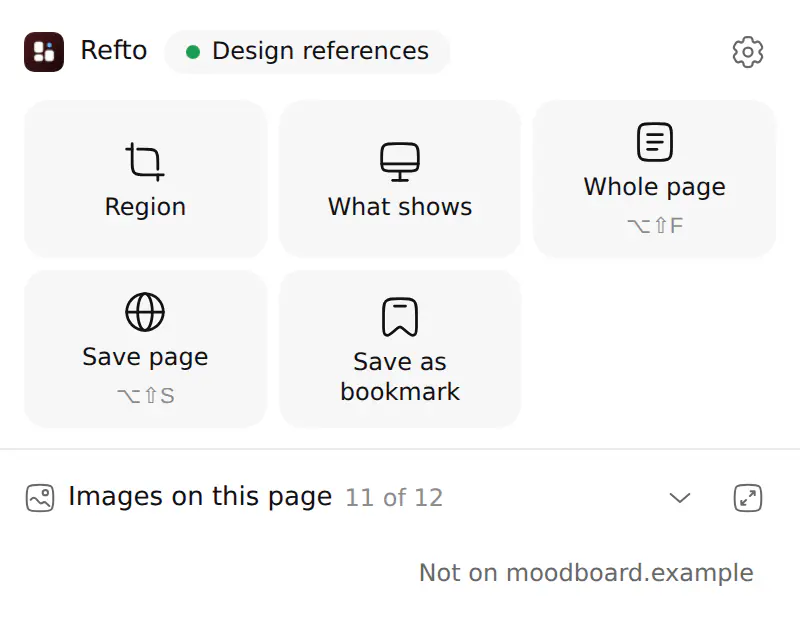
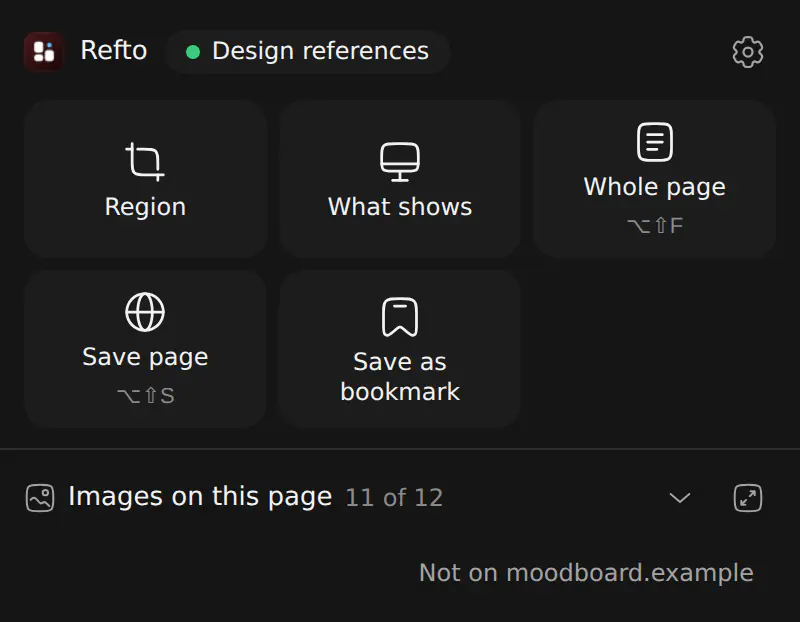
From the toolbar popup (⌥⇧E opens it) or the page's context menu:
- Save page (⌥⇧S): keeps the page as you see it. Refto then makes a snapshot, a picture of the whole page and the readable text.
- Save as bookmark: only the link, its cover, title and summary.
03
Screenshot a region
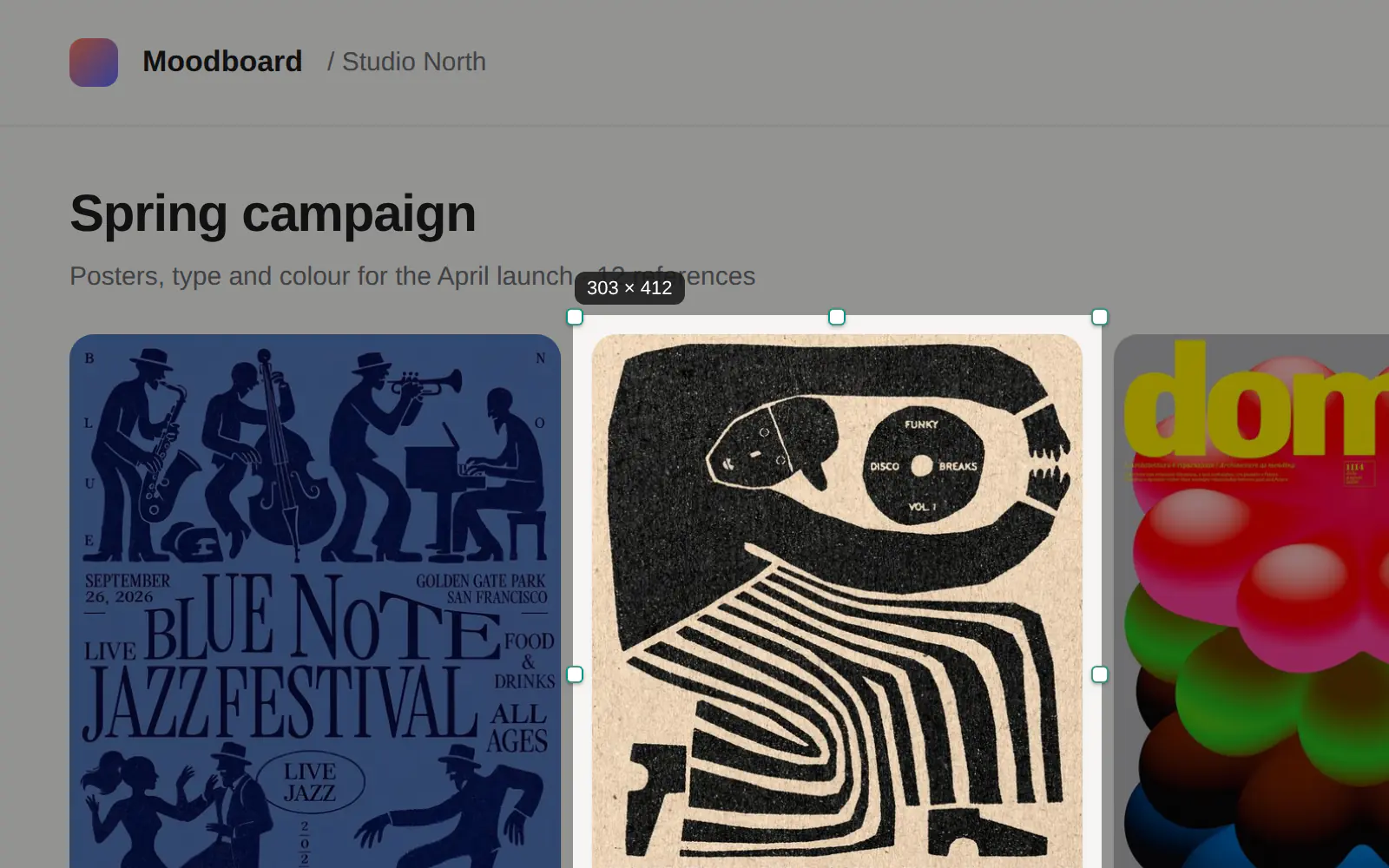
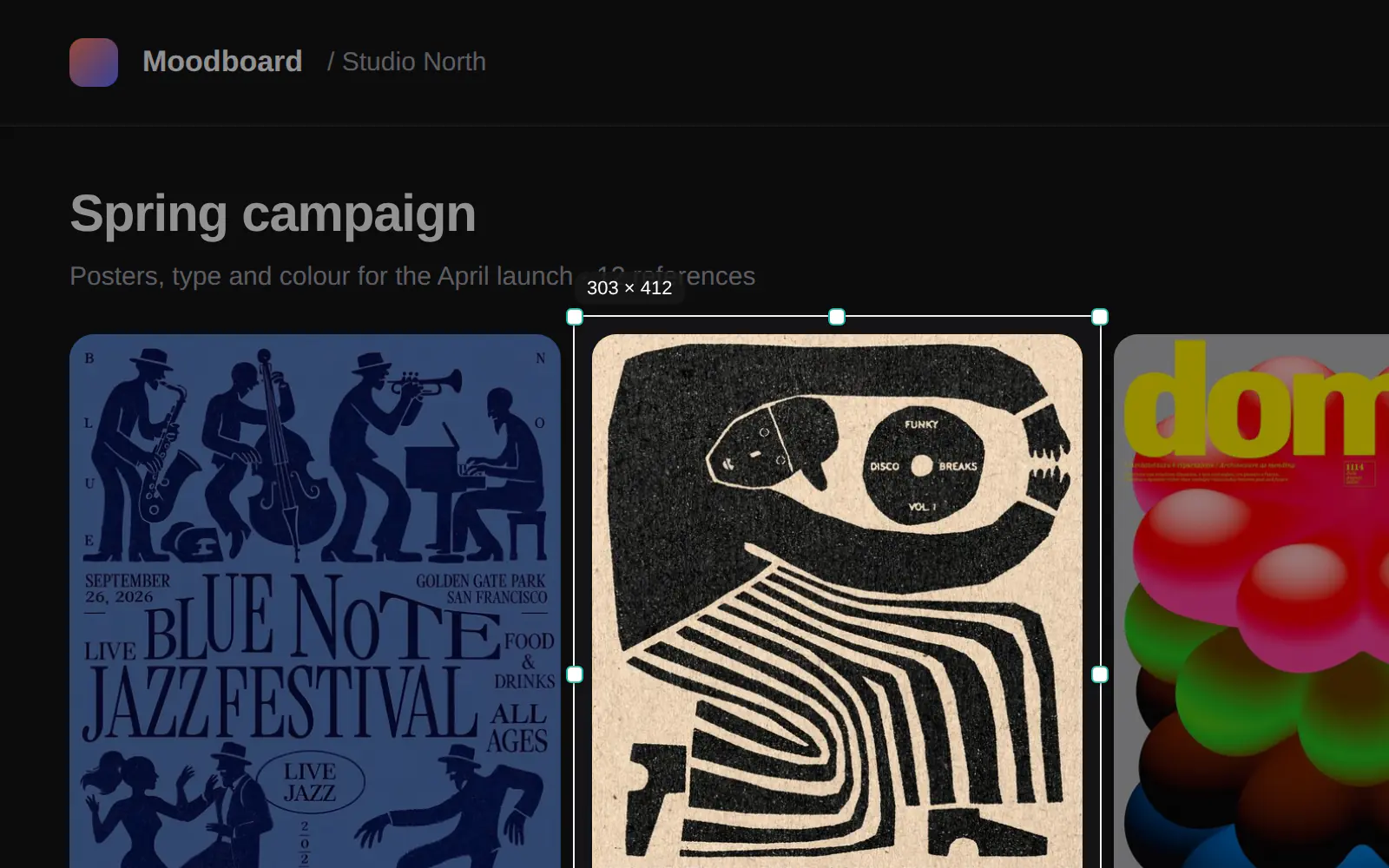
⌥⇧A, Region in the popup, or Screenshot to Refto › Region in the context menu. The page dims and you drag a frame.
- Hold ⇧ for a square; hold ⌘ and click an element to fit the frame to it.
- Drag the frame or its handles; arrow keys move it (⇧ for 10 pixels), ⌘ + arrows resize it; ⌘A takes the whole page.
- Drag near the top or bottom edge and the page scrolls: a region can be taller than the window.
- Return, a double click or Save to Refto saves; Esc or a right click cancels.
04
Screenshot the whole page
⌥⇧F or Whole page: the extension scrolls the page and stitches it into one picture. What shows takes only the part you see (no shortcut until you set one).
- It scrolls once first so that lazy pictures load, then shoots screen by screen.
- Sticky headers show once, at the top; chat buttons, cookie bars and pop-ups are left out.
- Progress shows in the tab's title and on the icon; Esc stops. The page goes back to where you were.
- Long pages are saved as one PNG, however tall.
05
Drag to save
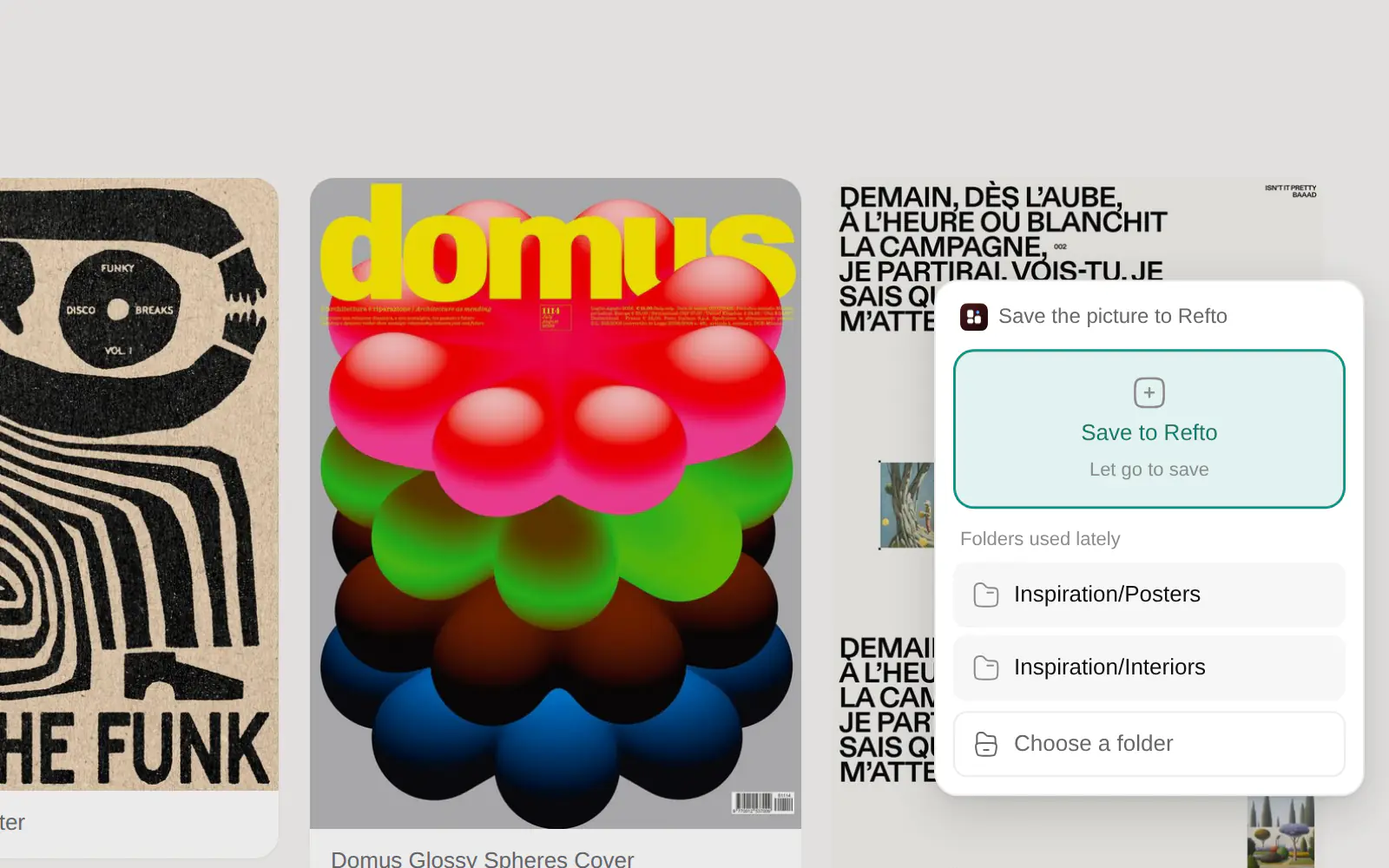
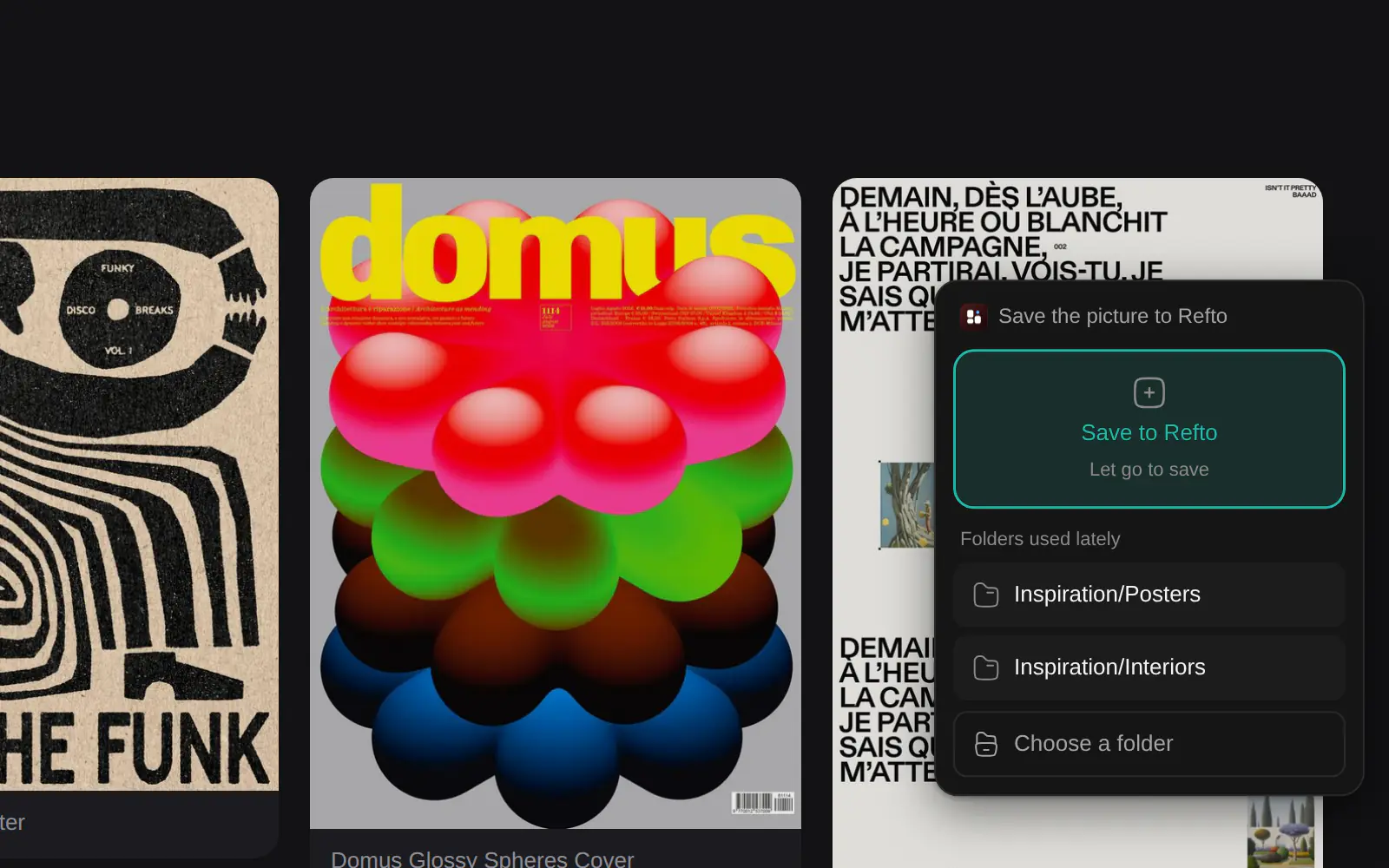
Drag a picture, a video, a link or selected text on a page: Refto's drop zone slides in at the window's edge.
- Drop on Save to Refto to save into the default folder.
- Drop on one of the folders used lately to save there, or on Choose a folder to pick any folder.
- A link is saved as a web page, text as a quote.
- Turn the drop zone off or move it to the left in the options.
06
Save many pictures at once
Images on this page in the popup lists the pictures on the page, at their largest size, without duplicates.
- Filter by size and format, sort by page order or largest first.
- Tick the pictures (or All), choose a folder, add tags, then Save N.
- Open in a window gives the list more room.
07
X, Pinterest, GitHub and other sites
On sites the extension knows, it saves the original picture or video and fills in the source: title, author, author's page, post address. Each site can be turned off, or given its own folder and tags, under Sites in the options.
X (Twitter)
- Each post gets a Refto button left of the bookmark button. One click saves the whole post: its text, every picture at full size, a GIF as a video, the quoted post and the author.
- Videos: Refto downloads them from the post's address. If it cannot, the post stays as a bookmark and Refto says so.
- On a post's own page, Sync fills in a post saved from the timeline: the whole text and every picture.
- A post you saved shows ✓.


X bookmarks and likes
- On X's History → Bookmarks or Likes, click Sync to Refto at the top. The extension scrolls the list slowly, a few seconds a screen with rests, and saves each post into a folder X Bookmarks or X Likes.
- The next sync only takes what is new; Pause and Stop are always there, and it stops at once when X says to slow down.


- Save to Refto left of Send on a pin you hover, and by the back button on a pin's page: the original picture or video, with the pin's title, description, author and board.
- Select pins, or import a whole board: the extension scrolls it for you and can be stopped. Then pick a folder and, on a board, tag with the board's name.
Also
GitHub repositories (Refto left of Star), 小红书 notes, YouTube, Bilibili, Reddit and Hacker News pages are kept as cards with their text and details; Dribbble, Behance, ArtStation, Instagram and Unsplash give the original picture or video and its author.
08
Settings
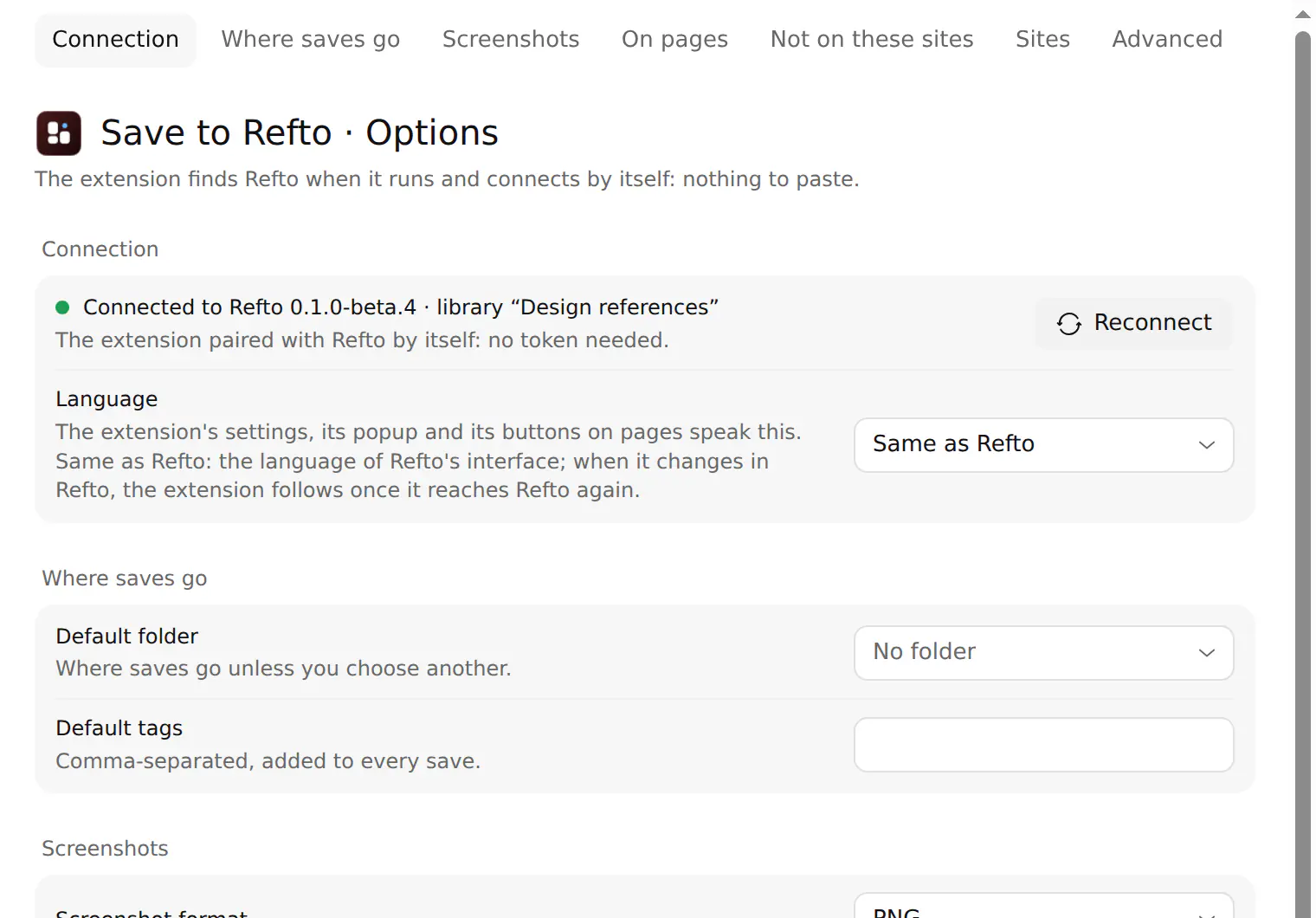
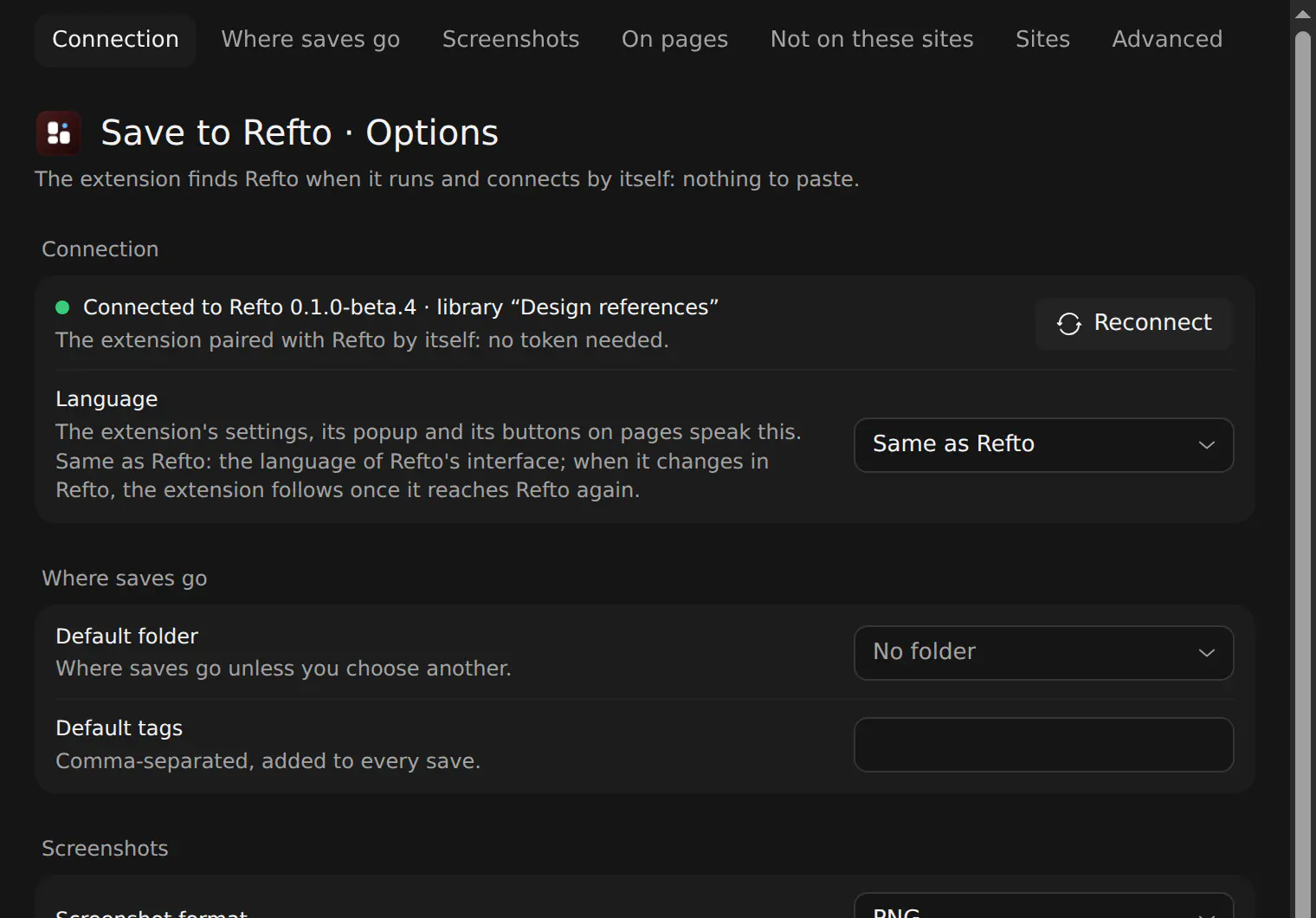
Click the gear in the popup, or right click the toolbar icon → Options.
- Connection: which Refto and library it is connected to, Reconnect, and its Language (the same as Refto's unless you choose).
- Where saves go: a default folder and default tags for every save.
- Screenshots: PNG or JPEG (and its quality) for one-screen shots, and the shortcuts.
- On pages: the drop zone and its side, ⌥ + right click, the Save quote button on selected text.
- Not on these sites: one site a line. No drop zone, ⌥ + right click or site buttons there; screenshots and the context menu still work.
- Sites: each site's support on or off, and its Preset: folder, tags and videos.
- Advanced: connect by hand with a port and a token, only when it cannot pair by itself.
09
Keyboard shortcuts
Change them at chrome://extensions/shortcuts (or Change shortcuts in the options). If another extension took a key first, the browser leaves it unset.
- ⌥⇧A
- Screenshot a region
- ⌥⇧F
- Screenshot the whole page
- ⌥⇧S
- Save this page to Refto
- ⌥⇧E
- Open the popup
- —
- Screenshot what shows (set one yourself)
10
When it cannot reach Refto
The toolbar icon turns grey and the popup says what is wrong. The usual cases: