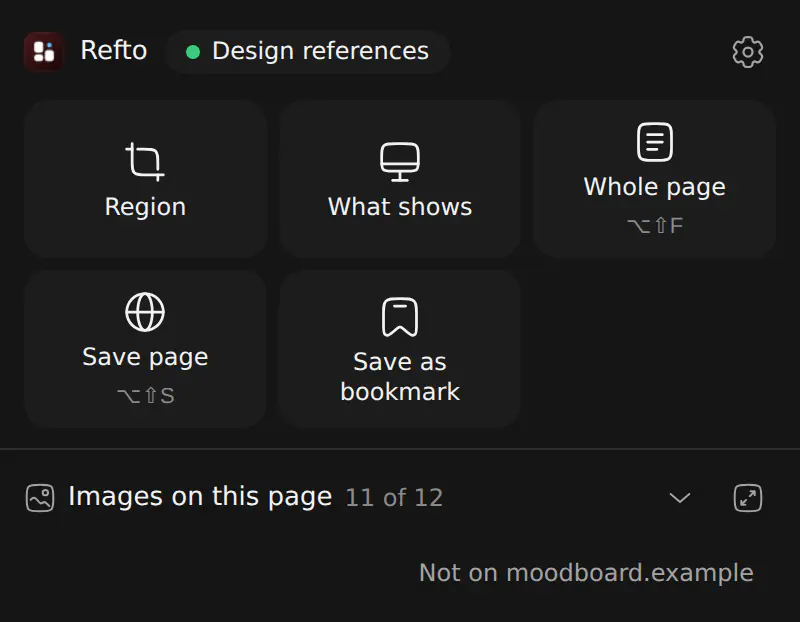
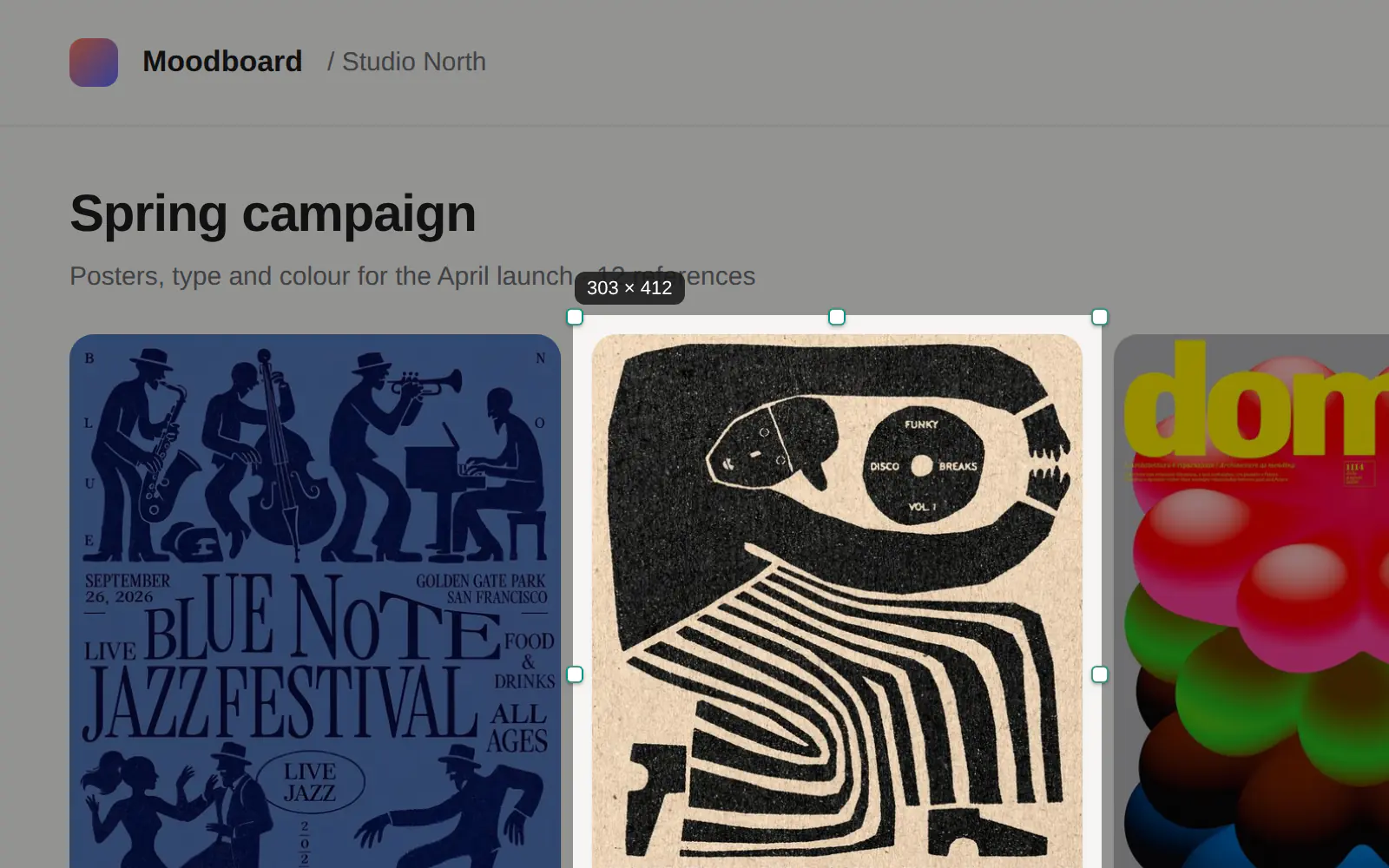
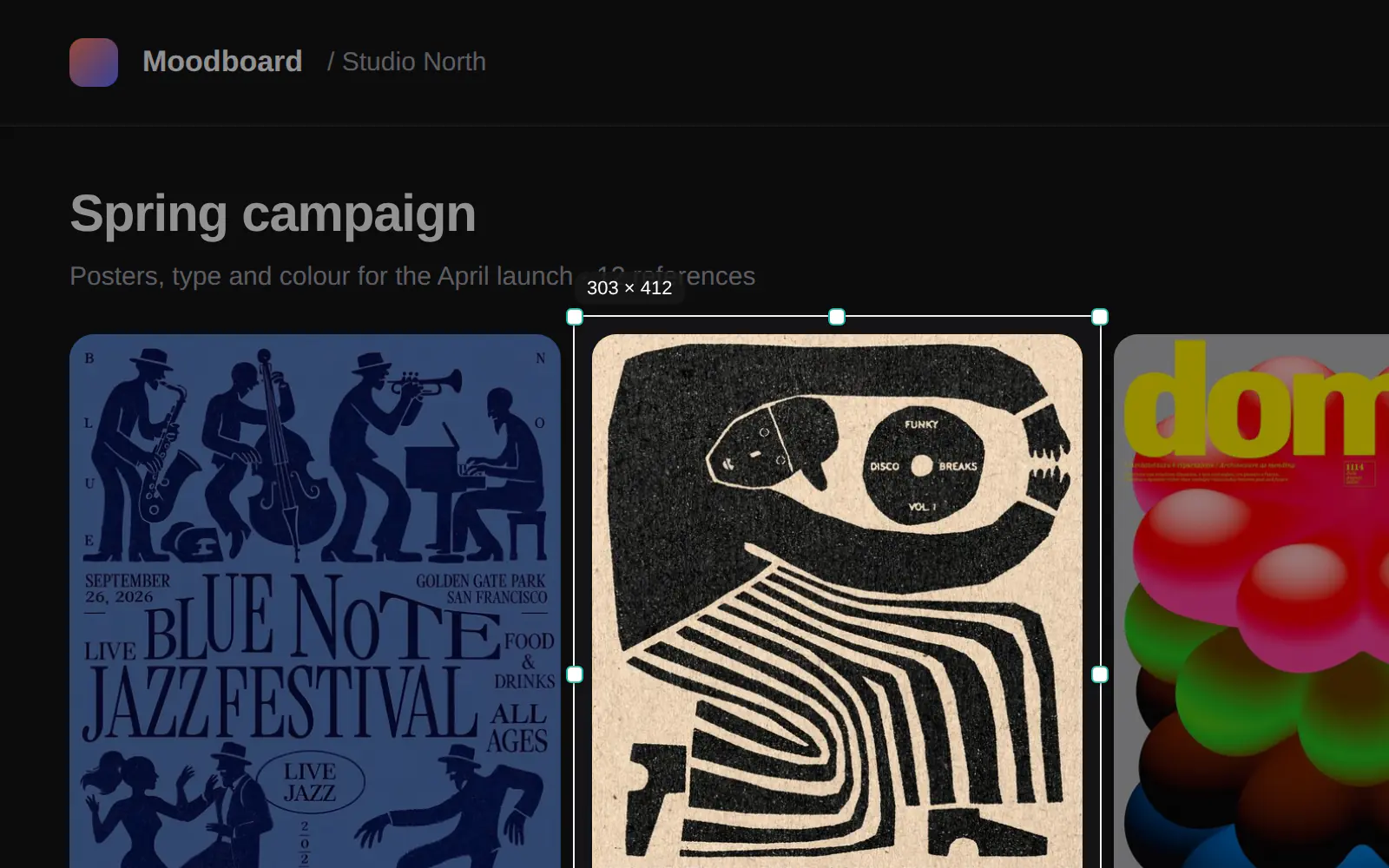
Screenshot a region
Press ⌥⇧A or pick Region in the popup, drag a frame round what you want and press Return.
More in the guideSave to Refto puts pictures, videos, links, text, whole pages and screenshots into your Refto library with a right click, a shortcut or a drag. It talks only to Refto on this Mac.
Version 0.8.3
The extension is not in the Chrome Web Store yet: you add it yourself in developer mode, as below. It takes a minute.
Safari: nothing to download. The extension comes inside Refto; you only turn it on. See Safari below.
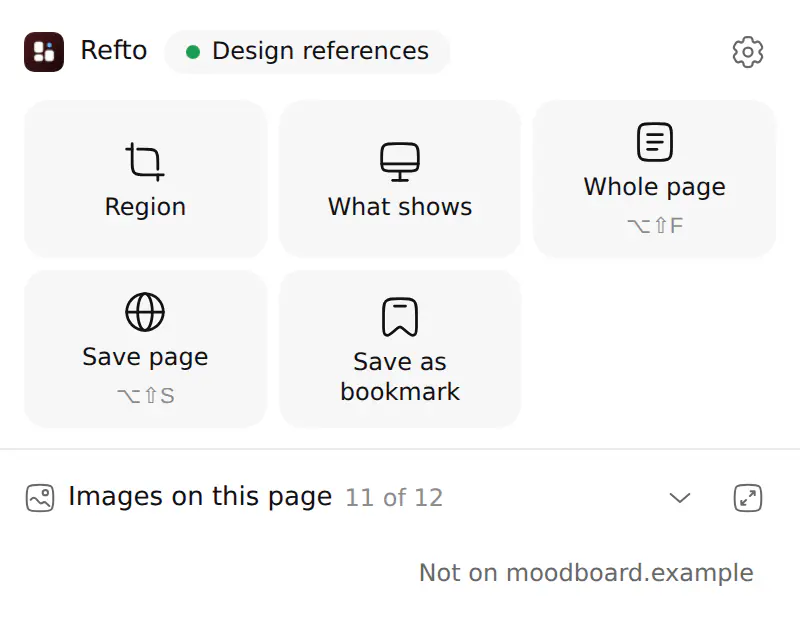
Everything goes into the Refto library that is open, with the page it came from.
Press ⌥⇧A or pick Region in the popup, drag a frame round what you want and press Return.
More in the guide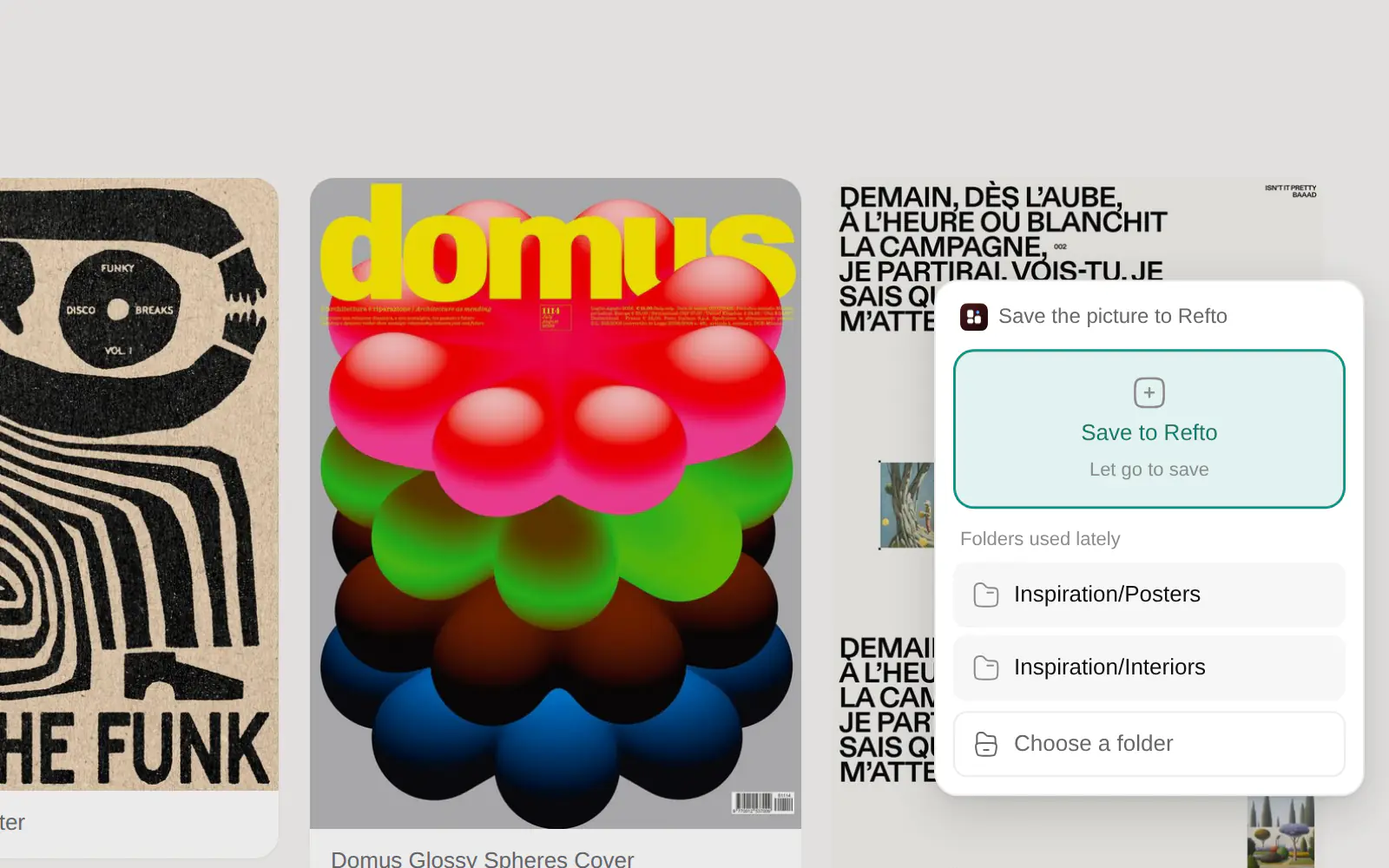
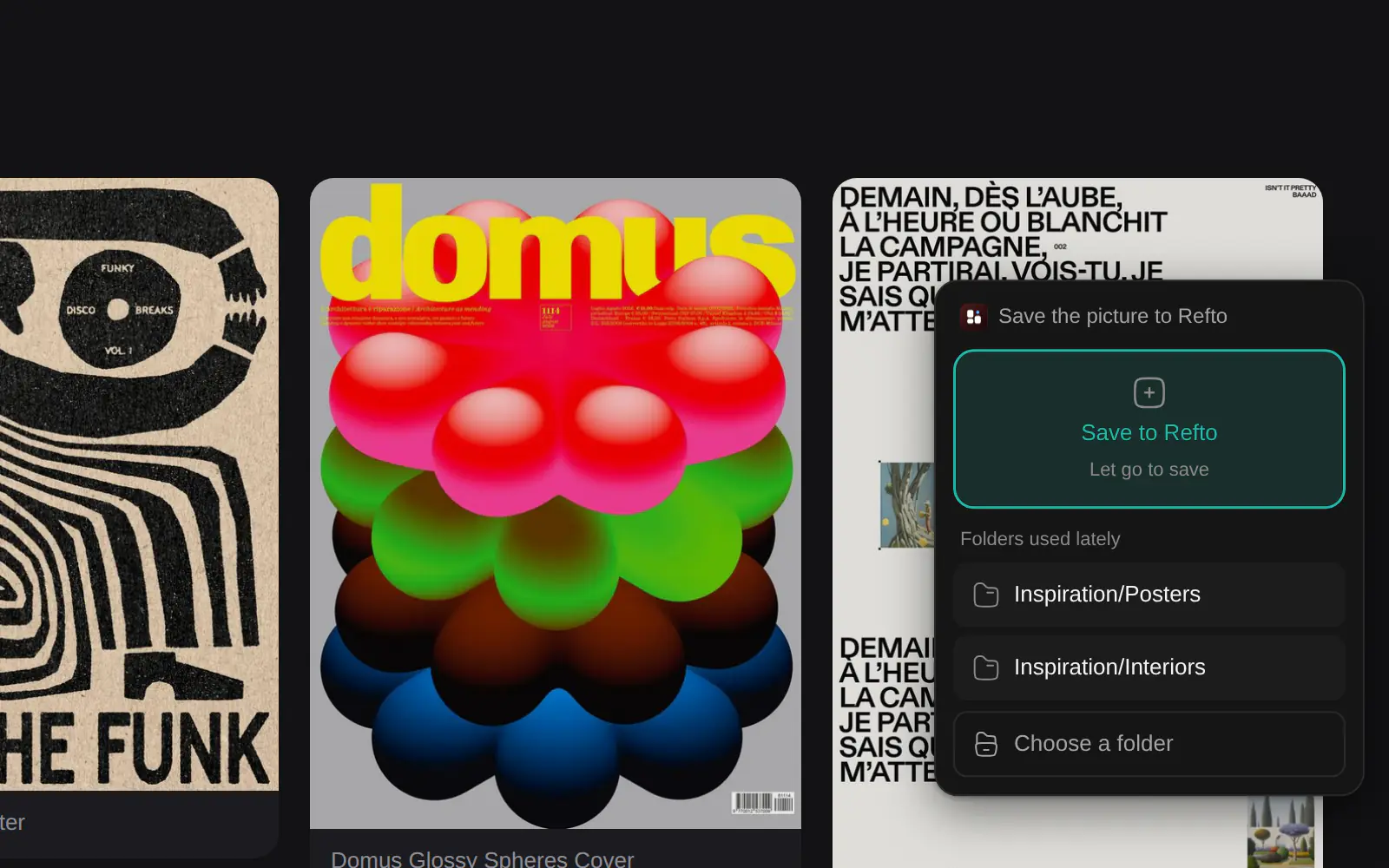
Drag a picture, a link or text and a drop zone slides in at the window's edge: drop it on Save to Refto or on a folder used lately.
More in the guideTwo ways to get the same extension. Exporting it from Refto gives the version that goes with your Refto.
chrome folder in its data folder and shows it in Finder.chrome folder.refto-extension-chrome-0.8.3 folder somewhere it can stay, for example your Documents folder. The browser keeps loading it from there: do not delete it.The extensions page
chrome://extensionsedge://extensionschrome://extensionsbrave://extensionsPaste the address into the address bar. Developer mode is a switch at the top right (in Edge, in the left column).
Then click the puzzle piece in the toolbar and pin Save to Refto, so its icon is always at hand.
The extension finds Refto on this Mac by itself and pairs with it. Refto lists it under Settings → Browser extension → Connected browsers.
The extension's options open once after you add it, with a short note on what it can do. The toolbar icon is grey whenever Refto is not running.
Right click a picture and choose Save image to Refto. If Refto is closed, the extension opens it first: when the browser asks whether to open Refto, choose Open.
Refto carries the Safari extension inside the app, so it is already on your Mac. Safari 16.4 or later; whole-page screenshots need Safari 17.
Installing and opening Refto lets Safari list its extension.
In Refto, Settings → Browser extension → Safari extension → Open in Safari's settings takes you to it. Or open Safari → Settings → Extensions yourself.
Tick Save to Refto to turn it on.
Allow it on 127.0.0.1 (where Refto listens on this Mac) and on the websites you save from, or on every website. It pairs with Refto by itself, as in Chrome.
In Safari, use the context menu and the toolbar popup: keyboard shortcuts for extensions are limited there.
When you add it, the browser warns that the extension can read and change data on all websites. It needs that for the drop zone, ⌥ + right click and its buttons on sites like X and Pinterest, which run inside pages, for screenshots of any tab, and to fetch pictures with your browser's cookies so that protected originals save too.
It sends nothing anywhere but to Refto at 127.0.0.1 on your Mac, and only when you save. To keep it away from a site, add the site to Not on these sites in its options.
Right click, screenshots, drag to save, batch saving, X, Pinterest and GitHub, settings and shortcuts.
Read the guide